Microsoft To Do
Background: Why I Did This
Time management is something we have to adjust throughout our lives — and for me, it’s always been a challenge.
For the past three years, I mainly relied on a physical notebook and pen to manage my time. But over the last two months, that stopped working as well as before. So I decided to try a small improvement:
Let Microsoft To Do pop up automatically when my computer starts. That way, I see my priorities right away. I rarely work in full-screen mode, so there’s always some space for the To Do window to stay visible.
The key to building habits is a trigger — and startup is a natural one.
This post records how I set it up: making Microsoft To Do automatically open on Windows 11 login.
Step-by-Step Implementation
Run PowerShell as Administrator
- Search for “PowerShell” in the Start menu.
- Right-click it → choose “Run as administrator.” (Otherwise, you’ll get an “Access is denied” error.)
- Paste the following command into the PowerShell window. If there’s no error, it worked successfully. (If it fails, it’s usually due to user permissions or Task Scheduler settings.)
$Action = New-ScheduledTaskAction -Execute "explorer.exe" -Argument "shell:AppsFolder\Microsoft.Todos_8wekyb3d8bbwe!App"
$Trigger = New-ScheduledTaskTrigger -AtLogOn
Register-ScheduledTask -TaskName "LaunchToDo" -Action $Action -Trigger $Trigger -Description "startup Microsoft To Do" -User "$env:USERNAME"
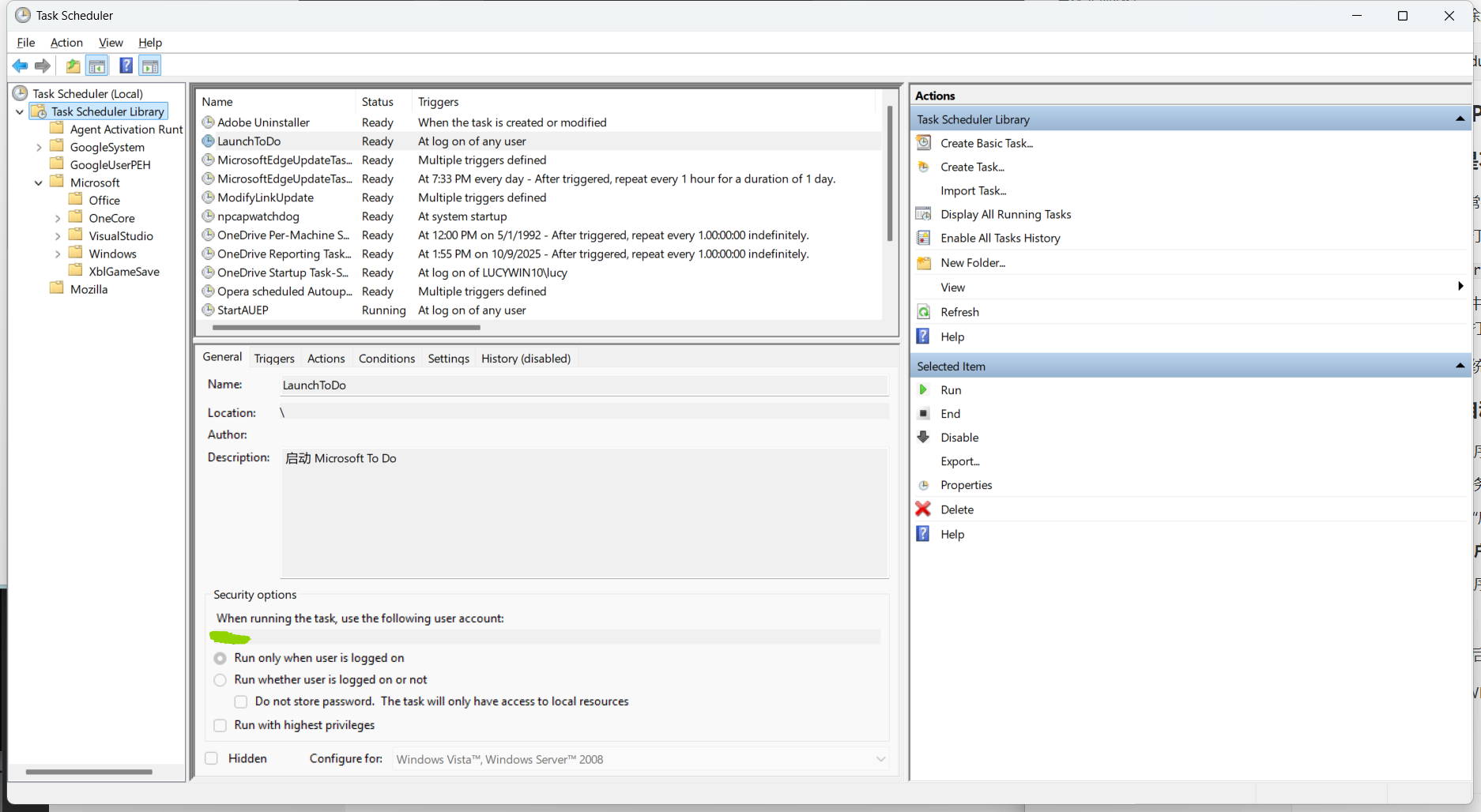
Check if the Task Was Created
-
Open Task Scheduler (search it from the Start menu).
-
Click “Task Scheduler Library” on the left panel.
-
Find the task named
LaunchToDo(if you used my script). -
Double-click it and check:
- Trigger: “At log on”
- Action: runs
explorer.exewith argumentshell:AppsFolder\Microsoft.Todos_8wekyb3d8bbwe!App - General tab: “Run only when user is logged on” is checked
-
Or simply restart your computer to see if Microsoft To Do opens automatically after login.
Further Exploration: Understanding the Logic
Explaining the Commands
Create the launch action
$Action = New-ScheduledTaskAction -Execute "explorer.exe" -Argument "shell:AppsFolder\Microsoft.Todos_8wekyb3d8bbwe!App"New-ScheduledTaskActiondefines what the task will do.-Execute "explorer.exe"means using Windows Explorer to launch something.-Argument "shell:AppsFolder\..."is a UWP app path, pointing to Microsoft To Do.
💡 Why use explorer.exe?
UWP apps don’t have a traditional .exe file. Using explorer.exe opens their app container path, so the app launches in a normal window.
Set the trigger
$Trigger = New-ScheduledTaskTrigger -AtLogOnNew-ScheduledTaskTriggerdefines when the task runs.-AtLogOnmeans it triggers when the user logs in (not when the system boots).
✅ This ensures To Do launches visibly, not silently in the background.
Register the task
Register-ScheduledTask -TaskName "LaunchToDo" -Action $Action -Trigger $Trigger -Description "Launch Microsoft To Do" -User "$env:USERNAME"Register-ScheduledTasksaves the task to the system.-TaskNameis the name you give it.-Actionand-Triggerrefer to what we defined earlier.-Descriptionadds a short note.-User "$env:USERNAME"binds it to the current user.
Where Does 8wekyb3d8bbwe!App Come From?
That’s the internal launch ID of the UWP app. The structure looks like this:
shell:AppsFolder\PackageFamilyName!AppIdMicrosoft.Todos_8wekyb3d8bbwe→ Package Family Name!App→ default App ID
📌 To find other UWP app IDs, run:
Get-StartAppsYou’ll get a list like:
Name             AppUserModelId
----             ---------------
Microsoft To Do  Microsoft.Todos_8wekyb3d8bbwe!App
Does This Work for All UWP Apps?
✅ Mostly yes, but with some conditions:
- The app must support launching via
AppUserModelId. - Some system or restricted apps may not open this way.
- If an app doesn’t launch, check its ID with
Get-StartApps.
How to Delete the Task
Are $Action and $Trigger temporary? Can I rename them?
- Yes — they are just temporary PowerShell variables.
- You can rename them (e.g.,
$a,$myTrigger) freely. - The real “permanent” part is the registered task in Task Scheduler.
📌 To delete it later, run:
Unregister-ScheduledTask -TaskName "LaunchToDo" -Confirm:$falseWhat If It’s Not a UWP App?
🛠 Launch on startup but not show a window
- Non-UWP apps have
.exefiles, so you can create shortcuts. - Press Win + R, type
shell:startup, and hit Enter. - Drop your app’s shortcut into the opened folder. (If you don’t have a shortcut, find it in the Start menu → right-click → More → Open file location → then create a shortcut.)
Now the app will automatically run every time you log in.
📅 Launch a window after login (non-UWP)
- Open Task Scheduler.
- Click “Create Basic Task.”
- Name it something like “Launch ***”.
- Set the trigger to “When I log on.”
- Choose “Start a program” and browse to the
.exefile. - Finish the setup.
Windows prevents background tasks from showing UI unless they’re explicitly set to run after user login.
📌 If you want to delay launch or use more complex triggers, Task Scheduler is the right place.
Conclusion
Most of this setup came from AI assistance — I mainly asked questions, tested commands, and organized these notes.
What I realized: command-line tools and GUI operations now map quite directly, but personally, I’m starting to prefer code-based workflows. Honestly, GUI interfaces often feel clumsy compared to a clean command.